Web Client
If you're a Linux user, you can only use the Web Client.
Installation on Linux
Download the correct updater for your platform and place it in an empty folder in your file system.
 Web Updater (x64)
 Web Updater (arm64)
You could also directly download OpenBullet2.Web-linux-x64.zip or OpenBullet2.Web-linux-arm64.zip, but the updater is recommended since it can be used to easily update your installation in the future.
- x64
- arm64
Open a terminal and cd into the folder where you placed the updater. Then execute the following commands
chmod +x ./ob2-web-updater-linux-x64
./ob2-web-updater-linux-x64
Open a terminal and cd into the folder where you placed the updater. Then execute the following commands
chmod +x ./ob2-web-updater-linux-arm64
./ob2-web-updater-linux-arm64
Once the updater has finished downloading the latest version of OpenBullet 2, execute this command to start the application:
chmod +x ./OpenBullet2.Web
./OpenBullet2.Web
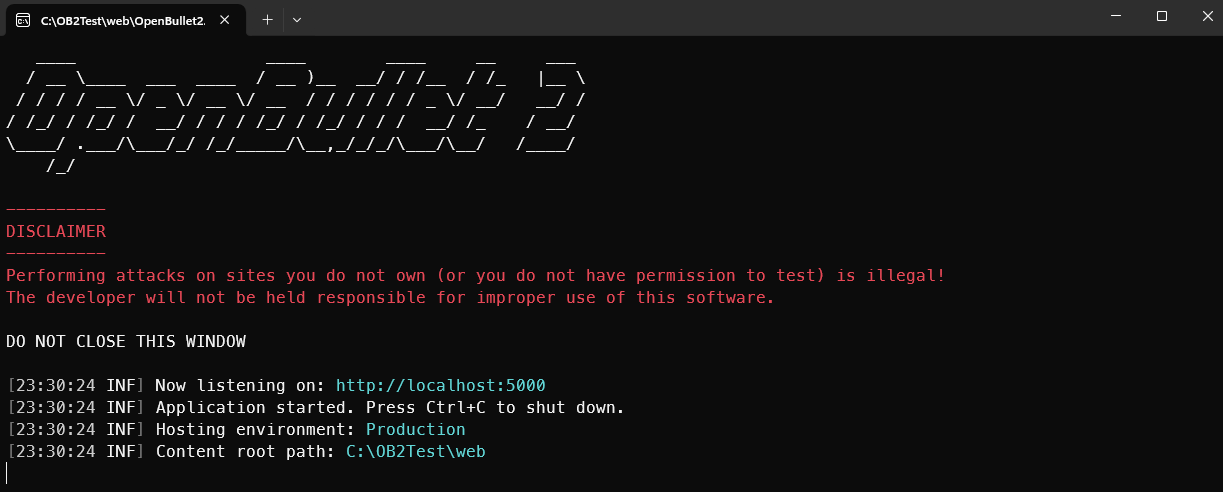
Wait until it prints the text you see in the picture below.
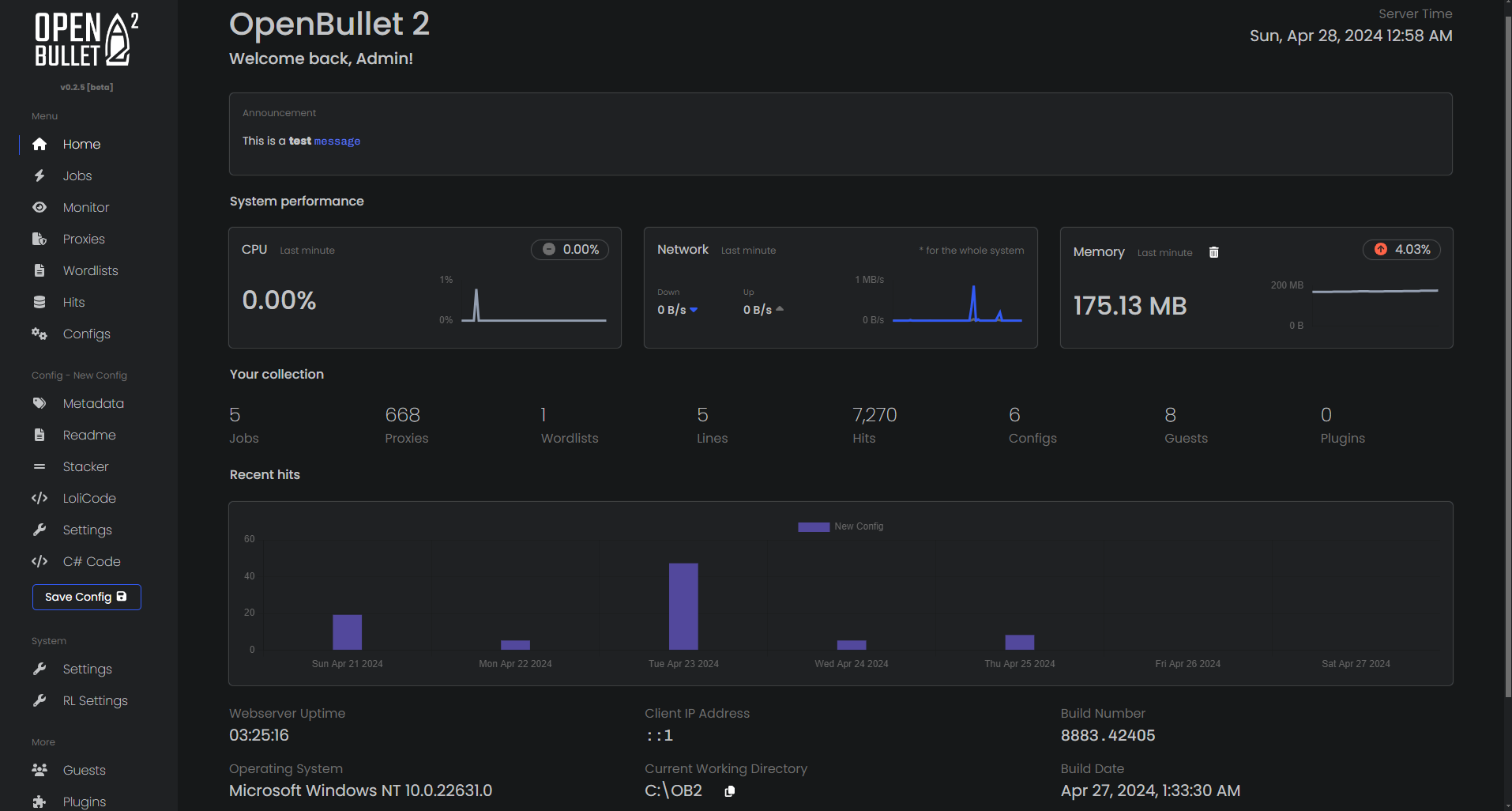
Finally, navigate to http://localhost:5000 using your favorite browser and you should see the home page.
Troubleshooting
I'm on a Linux server without a GUI
If you're on a Linux server (x64) and only have access to the command line, you can use these commands instead:
sudo apt install -y wget
wget https://github.com/openbullet/openbullet2/releases/latest/download/ob2-web-updater-linux-x64
chmod +x ./ob2-web-updater-linux-x64
./ob2-web-updater-linux-x64
chmod +x ./OpenBullet2.Web
./OpenBullet2.Web
Replace x64 with arm64 in the commands above if you're on an ARM64 system.