Updating the Web Client on Windows
It is good practice to keep your OpenBullet 2 client updated in order to get the latest features and bug fixes.
When you see this icon next to the version number, it means it's time to update your client.
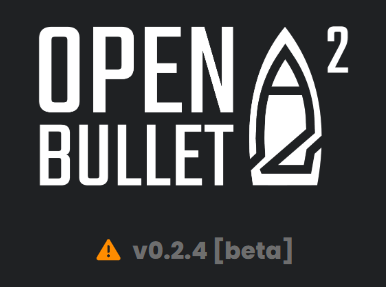
If you click on it, you will see a changelog with the latest changes and a button that will take you to the new release page on GitHub.
How to update
First of all, completely terminate OpenBullet 2's process. Note that this does not mean simply closing the tab in your browser, but exiting the console application that first opens when you start OpenBullet 2.
To update, simply navigate into the main folder of OpenBullet 2 and double-click on ob2-web-updater-win-x64.exe to run the updater.
If you're on Windows ARM64, use ob2-web-updater-win-arm64.exe instead.
The updater will guide you through the process of updating the Web Client.
Troubleshooting
The update fails
Make sure the update completes successfully by reading the console prompts. The download of the new version might take some time, so please wait until all the steps are completed. In case the update fails, you can:
- check your connection
- check if
github.comblocks your IP (since the updater downloads the latest release from GitHub) - try again at a later time
- ask for help on the official forum